Pages

Showing posts with label CSS. Show all posts

Matrix3D() CSS Function of the Transform Property

Matrix3D() CSS
-

Video Tutoral at https://youtu.be/kR4_IWzL168

The matrix3d() CSS function of the transform property defines a 3D transformation as a 4 x 4 homogeneous matrix. It contains 16 parameters like scaleX, scaleY, scaleZ, shearZX, perspectiveX, translateX, and so on.

►The scaleX will scale the element toward the X direction. In other words, it represents the scaleX() which is also used in the matrix() CSS function.

►The ShearYX shears an element by moving the element toward the Y direction and expanding toward the X direction. In other words, it represents the skewY() which is also used in the matrix() CSS function.

►The shearZX parameter shears an element by moving the element toward the Z direction and expanding toward the X direction.

►Perspective X. It supports the negative value.

►The shearXY parameter shears an element by moving the element toward the X direction and expanding toward the Y direction. In other words, it represents the skewX() which is also used in the matrix() CSS function.

►The ScaleY scales the element toward the Y direction. In other words, it represents the scaleY() which is also used in the matrix() CSS function.

►The shearZY parameter shears an element by moving the element toward the Z direction and expanding toward the Y direction.

►Perspective Y. It supports the negative values.

►The shearXZ parameter shears an element by moving the element toward the X direction and expanding toward the Z direction.

►The shearYZ parameter shears an element by moving the element toward the Y direction and expanding toward the Z direction.

►The ScaleZ scales toward the Z direction.

►Perspective Z. It supports the negative values.

►Translate X Y and Z. The translations of X and Y are also being used in the matrix() CSS function.

►PerspectiveScale. It doesn't support the negative values.

Use the code below to learn more.

Border CSS part-3

You can put the different sizes of border-width on the four sides of a border as shown here: border-width: 4px 11px 21px 35px; The border-width CSS property can be used with other properties like border-style", "border-radius", and "border-color" to create customized borders for HTML elements. Use the code below to create a border with different sizes on the four sides of a border.

Hide an image URL
HTML

Border CSS part-2

Border CSS

Video Tutoral at https://youtu.be/uZNPqO05z3E

,

Result:

MY BORDER

Border CSS part-1


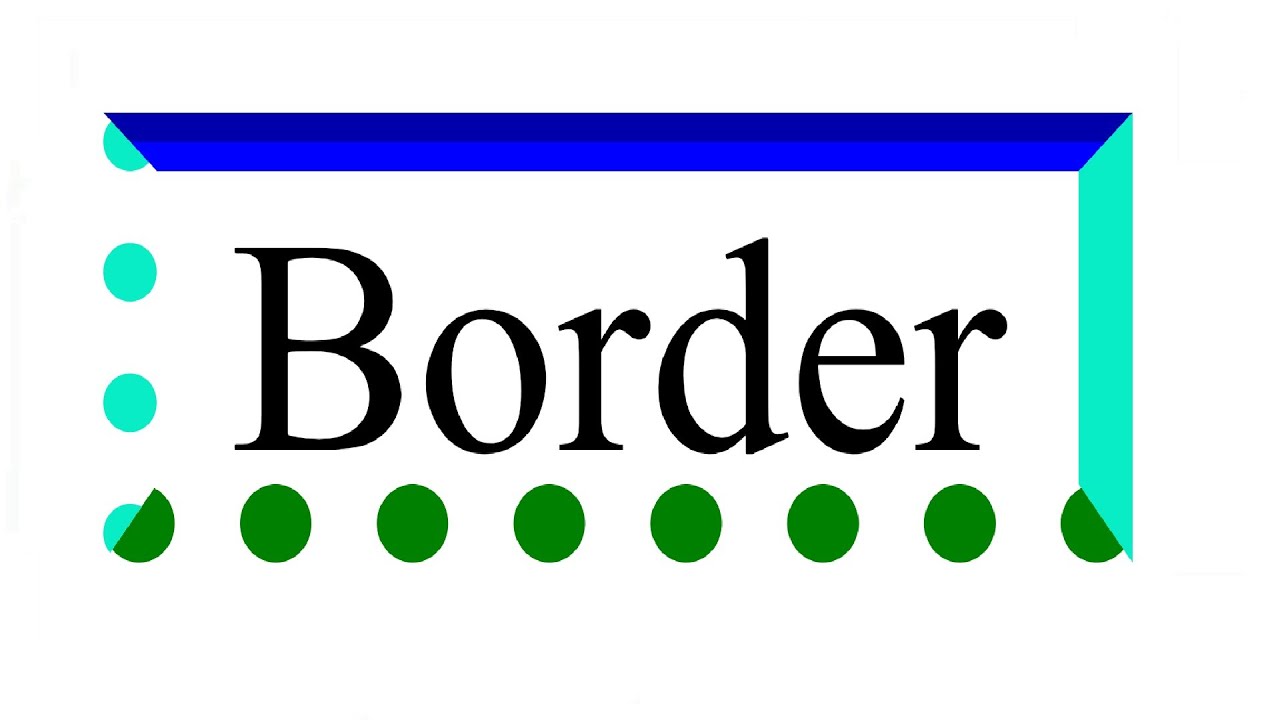
Today let's learn how to create borders by using a tag in HTML coding. It is very easy and simple. So guys, let's learn it with great interest.

Open a notepad and type any text between the opening and closing of the <div> tag.  Then save the notepad as any file name you want but make sure to add .HTML at the end of your file name. After that open the HTML file with any web browser. 

Add a border outside the text that we have typed. You can type style="border: 5px solid #42f5ef;" at the opening of the <div tag>. Go to file and click Save. 

Reload the web page on the browser. This time you can see a border outside the text. The size of the border is 5px. You can keep any border size you want. The type of border is "solid". #42f5ef is the color code of the border. You can keep the text alignment to the center by adding text-align: center; as shown here style="border: 5px solid #42f5ef; text-align: center;"

You can reduce the width of the border. Let's say the width of the border is 30%. (style="border: 30px dotted #af2eff; text-align: center; width: 30%;"). You can also increase the height of the border but here I have kept the height of the border as it is. Let's bring the border to the Center. You can do it by using a <center> tag.

You can change the border type from "solid" to "double", dotted, dashed, groove, ridge, inset, and outset. Now let's also add a border-radius. I am keeping the border-radius to 15px. (style="border:30px dotted #af2eff; text-align:center;  width:30%; border-radius:15px;").


        <center>
        <div style="border: 5px dotted #af2eff; text-align: center; width: 30%; border-radius:15px;">
            She shall sail ship on sea
        </div>
        </center>

If you want to add a border to your blogger or website, you can copy the code that we have created and paste it into the HTML area of your blogger or website.

That's it, guys. Thanks for reading and goodbye until next time.

Border Part Two at https://c815.blogspot.com/2022/11/border-css-part-2.html

CSS for the Curved Moon

Digital Date

Video Tutoral at https://youtu.be/z4ful90PAAE

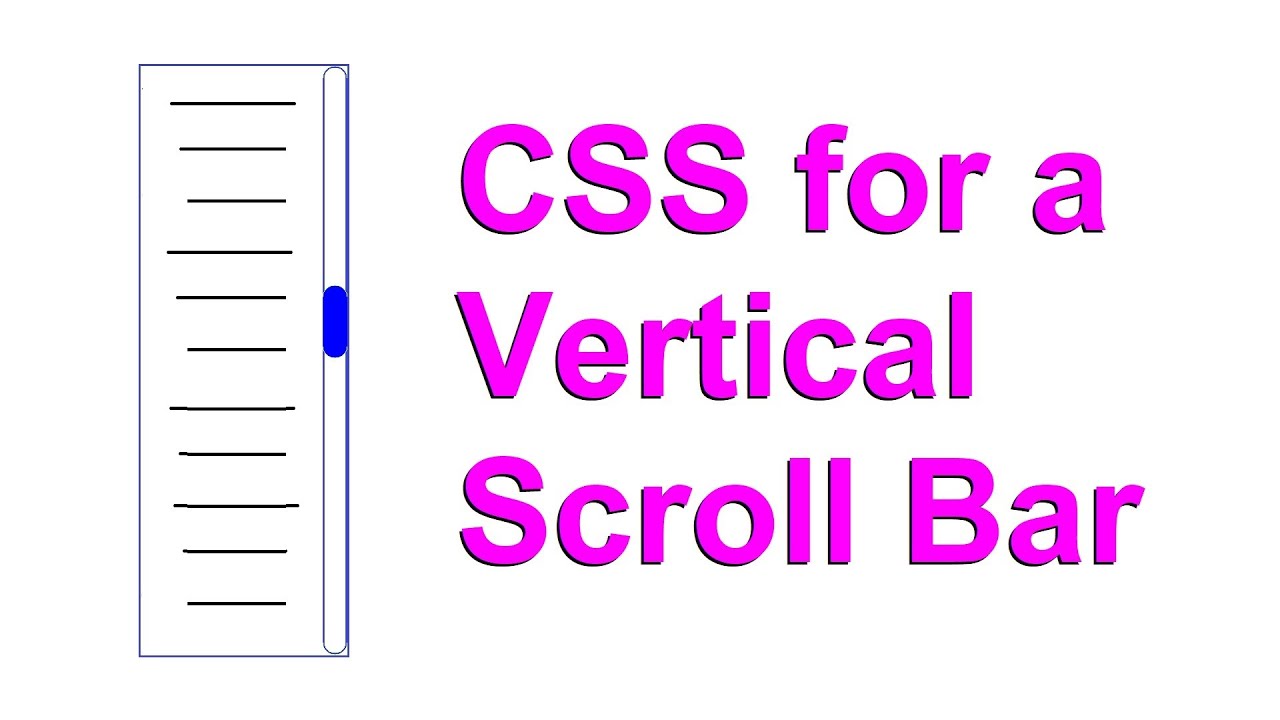
CSS for a Vertical Scroll Bar

Digital Date

Video Tutoral at https://youtu.be/Eq2DgQsqrjM


Scroll CSS With Links

Scrollbar with Links

Video Tutoral at https://youtu.be/o-gqJjppJ10


CSS for a Horizontal Scrollbar


CSS for the National Flag of the United States


Hexagon CSS


Down Triangle CSS


Right Triangle CSS


CSS for A Right Sidebar Responsive Website


Left Sidebar Responsive Website


CSS for Left & Right Sidebars-Responsive Website


Japanese Flag CSS


How To Turn Off Underline and Hover Hand icon from a Link in HTML


In this lesson, we are gonna learn how to turn off the underline and mouse hover hand icon from a link in HTML by using CSS. It is very easy. To remove the underline from a link, add here text-decoration: none; We can also remove the hover hand icon. Just add, pointer-events: none;


The min-width property in CSS


The min-width property in CSS defines the minimum width of an element. We can use the min-width property to prevent the width of an element or content from breaking down the lines.


Using min-height & min-width in a span tag


In this post, you will see how the min-height and min-width are being used in a span tag. Watch the above video for more information.


position: relative;


The position relative helps to shift an element relative to its normal position. It allows us to adjust with top, right, bottom, or left properties.